Wednesday, 31 January 2018

Multilingual .NET Application using SQL Server

I was tasked with a project and a very small portion of it was to insert Multilingual Characters into the SQL Server database using C# .NET

Although it’s a simple enough task once I googled and got information from here and there.
Here is my compilation of Step by Step guide, Hope this is helpful.

First Let’s Setup the Database table


SQL Query for creating Table 

SET ANSI_NULLS ON
GO

SET QUOTED_IDENTIFIER ON
GO

CREATE TABLE [dbo].[tbl_MultiLang](
    [Lang] [nvarchar](50) NULL,
    [Data] [nvarchar](50) NULL
) ON [PRIMARY]

GO

Let's setup a simple table with two columns, First is "Lang" of nvarchar that will have only English characters  and the second Data of nvarchar this will host Multilingual characters.


SQL Queries
Queries for Insert into table 
Key here is having "N" before inserting the Multilingual character or string

INSERT INTO tbl_MultiLang (Lang, Data) values(N'English',N'Hello')
INSERT INTO tbl_MultiLang (Lang, Data) values(N'Urdu',N'ہیلو')


SQL Output
Queries for Insert into table


C# Code
Following is the C# Code, illustrating the INSERT statement from the C# Application.

 1
 2
 3
 4
 5
 6
 7
 8
 9
10
11
12
13
14
15
16
private void button1_Click_1(object sender, EventArgs e)
{
            SqlConnection conn = new SqlConnection("server=****;database=testdb;uid=****;password=****");
            SqlCommand cmd;
            try
            {
                conn.Open();
                cmd = new SqlCommand("INSERT INTO tbl_MultiLang (Lang, Data) values(N'"+ tboxLang.Text +"',N'"+ tboxData.Text +"')", conn);
                cmd.ExecuteNonQuery();
                conn.Close();
            }
            catch (Exception ex)
            {
                MessageBox.Show("Error ", ex.Message);
            }
}


I haven't shown any read-back C# code from DB as it is straight-forward.

I found this article particularly interesting and also my Reference
http://installurdu.blogspot.sg/p/insert-urdu-characters-in-sql-server.html

Tuesday, 5 December 2017

How to attach the Start time of a Call in Genesys Routing strategy

It’s a good idea to have the start time of a call as attach data travel with the call for any further treatment or decision making.
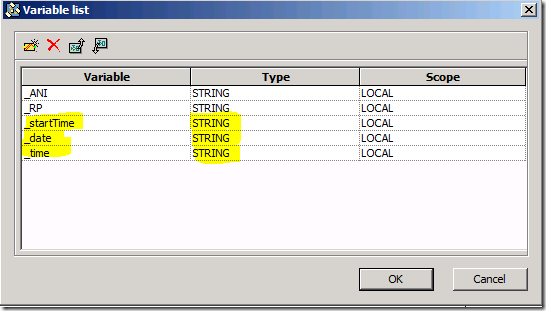
For this example, we will be using three variables
VariableType
_dateString
_timeString
_startTimeString


image

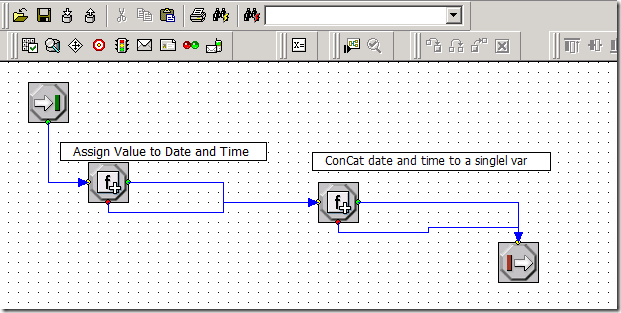
Routing strategy blocks will look like this
image

Let’s Start assigning values to the variables Date and Time
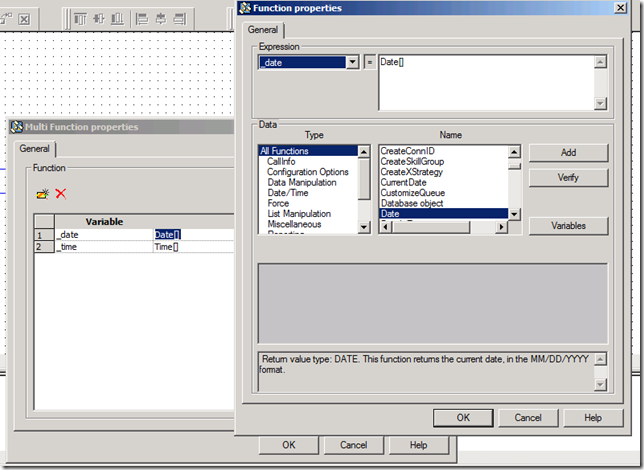
For Date there is an inbuilt function that returns date in the Format MM/DD/YYYY
image

Similarly lets assign value to the Time variable, there is an inbuilt function for this as well.
Format for time is in 24 hour format hh:mm

image

The last block is to concatenate the date and time into one, this puts us at ease if we are interacting with external systems or database.
image

image


The code for Concatenation is :

Cat[_date,' ',_time]


Looking at the logs we can see the variable _startTime has the value of both Date and Time as intended.


Saturday, 21 October 2017

Genesys Interaction Routing Designer – Using IRD with parameterized Stored Procedure

There comes a time when the Standard DB dips and query just isn’t enough and one requires to pass parameters to a Stored Procedure and get parameters as output.

Although the basic scenario of using a stored procedure is covered well in the Genesys Support Website but I my thoughts were getting multiple return parameters would be useful to know.

For this Post I will use the Scenario: a stored procedure that takes Email Address, NRIC and Phone Number as input in order to identify the customer and return the first and the last name, which can then be attached to User Data to be displayed on Workspace’s Case Data.

I will be using Genesys Framework 8.x and Microsoft SQL Server 2012 for this scenario.

Let’s start with creating a table and a stored procedure in SQL Server

SQL Server

Script for Table
       

CREATE TABLE [dbo].[newCustomer](
 [custID] [int] IDENTITY(1,1) NOT NULL,
 [Salutation] [nvarchar](20) NULL,
 [FirstName] [nvarchar](50) NULL,
 [LastName] [nvarchar](50) NULL,
 [NRICorPassport] [nvarchar](20) NULL,
 [Address] [nvarchar](max) NULL,
 [DataofBirth] [nvarchar](20) NULL,
 [Telephone] [nvarchar](20) NULL,
 [Email] [nvarchar](80) NULL,
 [SecurityQuestion] [nvarchar](max) NULL,
) ON [PRIMARY] TEXTIMAGE_ON [PRIMARY]

GO


Script for Stored Procedure
       
CREATE PROCEDURE dbo.sp_getFullName @NRIC nvarchar(30) = NULL, @PNo nvarchar(30) = NULL, @Email nvarchar(150) = NULL, @FName nvarchar(150) Output, @LName nvarchar(150) Output
AS
SELECT @FName = FirstName, @LName = LastName
FROM newCustomer
WHERE NRICorPassport = @NRIC OR Telephone = @PNo or Email = @Email
GO


Interaction Routing Designer (IRD)

Now the SQL part is completed, Let’s move to the Genesys IRD portion
Before we start the Genesys portion, Please ensure you have a valid DAP that points to the your database and the connection of the DAP in the Connections TAB of IRD Application and URS.

Input and Output Variables
01

Starting the Database Wizard, Select the DB Access Point
and in the “data access expression” Select Procedure
02

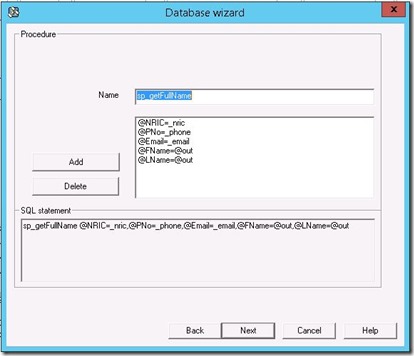
Enter the Name of the Stored Procedure and all input and output parameters
03

You can choose to Assign the value to a Variable or Attach the output as User Data to the call.
We will be Assigning the output to Variables.
Select “Assign each value to a variable when the output is a string of values ….”

;[04

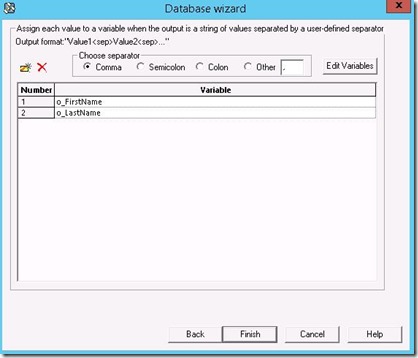
Last but not the least step of the Database Wizard is the specify the “Separator” (since out output is being return as a string and the Variables to assign the values to.

05

Once we have the value in Variables, we can attach those value to User Data and later use.

06

Output on Workspace

As seen below the two output parameters we received from the stored procedure

Genesys Workspace Case Information

Log Analysis / Points of Interest


1- “Here is XDATA” This is the start of Database Block
2- The Actual Details being passed to SQL Server can be seen i.e. the name of stored procedure and all of the input and output parameters.
3- Output Parameters returned by the SQL Server
4- Assignment of the variables


Wednesday, 31 May 2017

VBScript to rename file

There are many VBScript to rename file available online. This script is a simple version that will rename file in a directory removing a specific sub string from a filename

Example if you have filename e.g 

001_US.txt
002_US.txt
003_US.txt

Desired output is (with _US removed)

001.txt
002.txt
003.txt

Change Line 13 to your directory containing the files 
and
Change Sub String in Line 26


Code Snippet 


1:    
2:  ' -------------------------------------------------------'  
3:  ' VBScript to Rename files, remove the last specfic sub string file a filename  
4:  ' example if file names are like 001_US, 002_US, 003_US the sub string "_US" can be removed using this script  
5:  ' NOTE: Its always good to have a backup before hand.  
6:  ' Date : 31 May 2017  
7:  ' Author : Muhammad Nauman Yousuf (nauman_yousuf@yahoo.com)  
8:  ' -------------------------------------------------------'  
9:    
10:    
11:  ' Variable declaration and initialization   
12:   Dim oFS : Set oFS = CreateObject("Scripting.FileSystemObject")  
13:   Dim sDir : sDir   = "c:\temp\one"  
14:   Dim oFile  
15:    
16:     
17:   'List the orignal Files  
18:   WScript.Echo " --- Orgnal File Directory --- "  
19:   For Each oFile In oFS.GetFolder(sDir).Files  
20:     WScript.Echo oFile.Path  
21:   Next  
22:     
23:   WScript.Echo "----- Rename Operation Started:"  
24:     
25:   For Each oFile In oFS.GetFolder(sDir).Files  
26:            oFile.Name = Replace(oFile.Name, "_US", "")  
27:            WScript.Echo "Renamed : " & oFile.Name  
28:   Next  
29:   WScript.Echo "----- Rename Operation Completed:"  
30:         
31:    
32:   'List the orignal Files  
33:   WScript.Echo " --- Final Directory List --- "  
34:   For Each oFile In oFS.GetFolder(sDir).Files  
35:     WScript.Echo oFile.Path  
36:   Next  


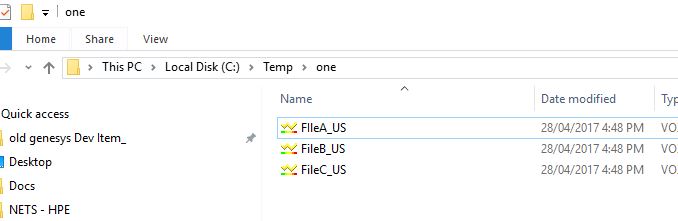
Sample Run


References

http://www.pctools.com/guides/scripting/id/2/?act=reference

http://www.pctools.com/guides/scripting/detail/80/?act=reference 

Tuesday, 14 February 2017

Installing .NET Framework 3.5 on Windows 2012


Installing .NET Framework 3.5 on Windows 2012
Installing .NET Framework is a bit different from the standard way like other Roles or Features are installed.

Following is the command
DISM /Online /Enable-Feature /FeatureName:NetFx3 /All /LimitAccess /Source:d:\sources\sxs

Command Parameters:
/Online targets the operating system you're running (instead of an offline Windows image).
/Enable-Feature /FeatureName:NetFx3 specifies that you want to enable the .NET Framework 3.5.
/All enables all parent features of the .NET Framework 3.5.
/LimitAccess prevents DISM from contacting Windows Update.
/Source specifies the location of the files needed to restore the feature (example, the D:\sources\sxs directory or a network location using \\ we will be using network location in the example below).

Example


Sunday, 31 July 2016

Raspberry Pi 3 – The Unboxing and First Time Installation


Few weeks back me finally got my hands over the newest version of Raspberry Pi (i.e. Raspberry Pi 3 Model B). Very excited about it !!

A bit about the Raspberry Pi:

It’s been over four years from 29 February 2012 when the first Raspberry Pi was launched and has been a great success ever since.
Raspberry Pi is a small just about a Credit Card sized computer that is without a Keyboard, Mouse and Display.

Hardware Specification

RPi 3 is the third generation Raspberry Pi. New Features from its predecessor:
  • A 1.2GHz 64-bit quad-core ARMv8 CPU
  • 802.11n Wireless LAN
  • Bluetooth 4.1
  • Bluetooth Low Energy (BLE)
Like the Pi 2, it also has:
  • 1GB RAM
  • 4 USB ports
  • 40 GPIO pins
  • Full HDMI port
  • Ethernet port
  • Combined 3.5mm audio jack and composite video
  • Camera interface (CSI)
  • Display interface (DSI)
  • Micro SD card slot (now push-pull rather than push-push)
  • VideoCore IV 3D graphics core
The new RPi 3 has an identical form factor to the previous Pi 2 (and Pi 1 Model B+) and has complete compatibility with Raspberry Pi 1 and 2.

The RPi works with a variety of operating systems and the one that is from the OEM is the OS called Raspberian it’s a Derbin Flavour of Linux (Add more details of OS)
  • Raspberian
  • Ubuntu
  • Windows 10 IoT
You can find a list of all the options available here

Unboxing

I have ordered mine from the Pi Hut but you can get yours from your from quite a few retailers like element14, Amazon or Pi Hut
Ordered the Raspberry Pi 3 Starter Kit that comes with a few basic accessories which costs around GBP 50 (considering I ordered on the during the 1st week of the launch)


  • The Box that I received it in.
Box Opened
RPi and SD Card
Raspberry Pi 3


Case for Raspberry Pi


The official power supply with multiple connectors


Plugging IN

Good now we have all what we need, lets plug in and power up.
Plugging in fairly simple and string forward 

  • Put in the SD card
SD Card


SD Card Inserted


  • Connecting the Raspberry Pi to external monitor via HDMI


  • Connected USB Keyboard and Mouse (on the bottom left of the screen two USBs)


Since my monitor doesn't support HDMI directly hence the convertor.  


Power Connected

(once connected you can see the red led lit up)


As the SD Card that was shipped with the starter kid has NOOB per-installed


We will Installing "Raspbian", select "Raspbian" and press "OK"


As soon as you press "Ok", you will get the Waring below, which is a required inorder to proceed so press "Yes" to accept that the existing data will be overwritten.


Once the installation starts we will see the screen similar to the ones below.


Congratulations you now have Raspbian 1.8 Installed and running on your RPi


After pressing "OK" Raspbian will start booting.


That's the end of our Blog post. I will be posting more on some basic stuff to go forward.

Please feel free to reach me in case of any Question or Comment as your like. Would love to hear what you think about this.