Showing posts with label genesys. Show all posts

Saturday, 21 October 2017

Genesys Interaction Routing Designer – Using IRD with parameterized Stored Procedure

There comes a time when the Standard DB dips and query just isn’t enough and one requires to pass parameters to a Stored Procedure and get parameters as output.

Although the basic scenario of using a stored procedure is covered well in the Genesys Support Website but I my thoughts were getting multiple return parameters would be useful to know.

For this Post I will use the Scenario: a stored procedure that takes Email Address, NRIC and Phone Number as input in order to identify the customer and return the first and the last name, which can then be attached to User Data to be displayed on Workspace’s Case Data.

I will be using Genesys Framework 8.x and Microsoft SQL Server 2012 for this scenario.

Let’s start with creating a table and a stored procedure in SQL Server

SQL Server

Script for Table
       

CREATE TABLE [dbo].[newCustomer](
 [custID] [int] IDENTITY(1,1) NOT NULL,
 [Salutation] [nvarchar](20) NULL,
 [FirstName] [nvarchar](50) NULL,
 [LastName] [nvarchar](50) NULL,
 [NRICorPassport] [nvarchar](20) NULL,
 [Address] [nvarchar](max) NULL,
 [DataofBirth] [nvarchar](20) NULL,
 [Telephone] [nvarchar](20) NULL,
 [Email] [nvarchar](80) NULL,
 [SecurityQuestion] [nvarchar](max) NULL,
) ON [PRIMARY] TEXTIMAGE_ON [PRIMARY]

GO


Script for Stored Procedure
       
CREATE PROCEDURE dbo.sp_getFullName @NRIC nvarchar(30) = NULL, @PNo nvarchar(30) = NULL, @Email nvarchar(150) = NULL, @FName nvarchar(150) Output, @LName nvarchar(150) Output
AS
SELECT @FName = FirstName, @LName = LastName
FROM newCustomer
WHERE NRICorPassport = @NRIC OR Telephone = @PNo or Email = @Email
GO


Interaction Routing Designer (IRD)

Now the SQL part is completed, Let’s move to the Genesys IRD portion
Before we start the Genesys portion, Please ensure you have a valid DAP that points to the your database and the connection of the DAP in the Connections TAB of IRD Application and URS.

Input and Output Variables
01

Starting the Database Wizard, Select the DB Access Point
and in the “data access expression” Select Procedure
02

Enter the Name of the Stored Procedure and all input and output parameters
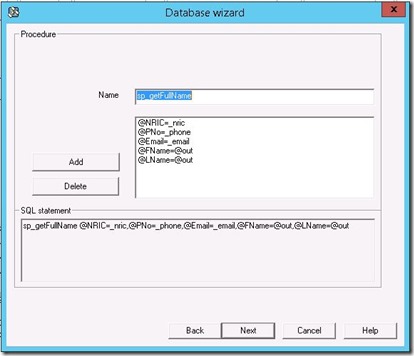
03

You can choose to Assign the value to a Variable or Attach the output as User Data to the call.
We will be Assigning the output to Variables.
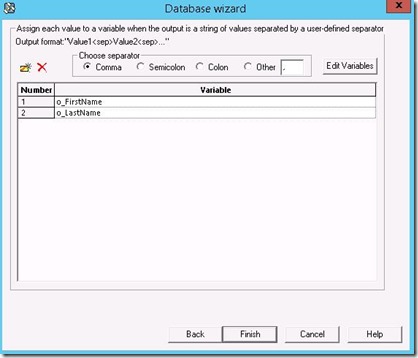
Select “Assign each value to a variable when the output is a string of values ….”

;[04

Last but not the least step of the Database Wizard is the specify the “Separator” (since out output is being return as a string and the Variables to assign the values to.
05

Once we have the value in Variables, we can attach those value to User Data and later use.

06

Output on Workspace

As seen below the two output parameters we received from the stored procedure

Genesys Workspace Case Information

Log Analysis / Points of Interest


1- “Here is XDATA” This is the start of Database Block
2- The Actual Details being passed to SQL Server can be seen i.e. the name of stored procedure and all of the input and output parameters.
3- Output Parameters returned by the SQL Server
4- Assignment of the variables


Friday, 30 October 2015

Genesys URS WebService Block Integration

Integrating a Simple ASP.NET SOAP Web Service with Genesys URS using the Web Services Block


Introduction
Genesys within its routing and GVP IVR provides a lot of flexibility and powerful abilities and one of them is to consume Web Services. This post will provide detailed walk through on how consume a Web Service in the Genesys Routing (URS / IRD). This post consists for three parts, first is to create a simple Web Service in ASP.NET C#. The Second part is consuming the Web Service in IRD and configuring the URS options for it. Last part is making the call and looking at the logs to see if the expected behavior is the same as we expected.


Please feel free to comment or contact me would love to hear your thoughts.

Part 1 – Creating Web Service

Once opened go to File -> New -> Web Site and create a new Web Service


Now let’s modify the function to fit our need, we will have a function that takes string as input and we will return a string array.


Next we will try to run in debug mode, just be sure if our web service works


Press “Ok” using the default option “Modify the Web.config”


Now click on the function name


Enter a Value and press Invoke to see the type of output we will be getting


Good now we have what we are looking for i.e. an Array of String.

Few Important Items to take note of when we are integrating with URS
We will be using the highlighted in Part 2


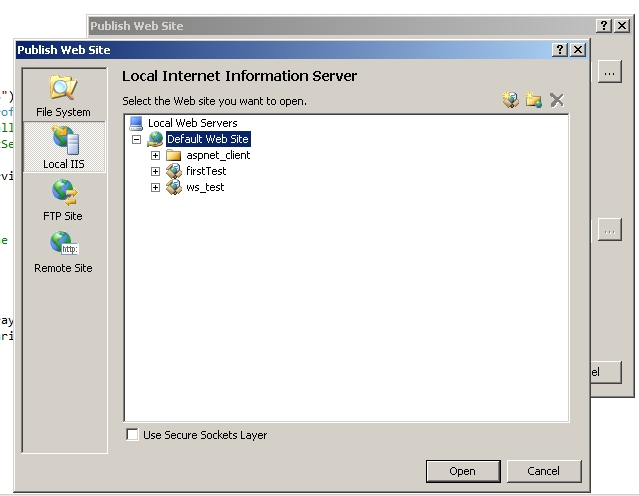
Deployment of Web Service to the IIS

Before deploying the Web Service to the IIS be sure to change the Authentication Mode to “None” in the web.config


Part 2 – Integrating with Genesys URS

Creating a new routing strategy.


Variables


Variable
Description
inputStringforWS
To Pass input into the Web Service block and further passed into the web service
outputfromWS
Receive the output from Web Service Block.
outputString1
First part of the received output form WS
outputString2
First part of the received output form WS


Let’s initialize a variable that we will be passing into the Web service Block


(Please note the Prefix Syntax used above in Method name and Method namespaces)

Web Service URL: The Web service URL

The three following are highlighted in the above snapshot, when we created the Web Service
Method name: “modifyStringtoArray”
Method namespace: “SampleTestWS”
SOAPaction: “SampleTestWS/modifyStringtoArray”
Request Parameters
Key (the variable name of the input in Web Service) and Value (that value we will be passing which is set in the first function of this routing strategy)

Security Tab of the Web Service Block
For this demo we will be using Anonymous Access as HTTP Auth


Result Tab of the Web Service Block
We have only one variable returned (i.e. an array of string)


Now that we are all set sets put exception logging


The final part of reading our output, this way since we have an array of string returned and we know its 2 in count so we can easily use the “ListGetStrig” function.


Before you go executing the Web service and placing test calls, let’s verify that you have done the necessary in URS.

Setting up the URS Application (using CME)
Please verify that you have the Web tab in the Options of the URS which following keys.
Setting up the Web options is a mandatory task and quite helpful in troubleshooting once the HTTP Bridge logs are being created.


[web]
http_log_file=C:\mylogsfolder\URShttpBridge
http_log_size=10000
http_port=8088
log_buffering=false
soap_conn_idle_timeout=15
soap_retry_attempts=3
soap_retry_timeout=10
verbose=3


* http_port be sure to use an unassigned TCP port here.


Part 3 – Executing and Log checking

Let’s put our routing strategy on a route point and place a call to see how things go.


All done, now let’s put a call through and look at the logs

Hurry J we have our excepted response highlight below in light green, following is the URS HTTP Bridge.


Now the Last part of this Post is to verify if the response received from the Web services has reached our Variables in routing strategy (via the URS Logs)


Test Environment Details

For this scenario, I have a Windows 7 Professional Machine (my laptop) and a Genesys running on Virtual Machine running on top of it, details of version are listed below. 
Note that there is no firewall between the two machines (just in case you are struggling with networking)

Versions


Non-Genesys  Components
Version
IIS
7.5.7600.16385
OS (IIS deployed On)
Windows 7 Professional SP 1
SOAP Version
1.1
Visual Studio
2010
Microsoft .NET Framework;
4.0.30319
ASP.NET Version
4.0.30319.34249

Genesys  Components
Version
Framework
8.0
URS
8.0
HTTP Bridge
8.0
IRD
8.0
SIP Server
8.0
Stat Server
8.0


List of Terms
Term
Description
IIS
Internet Information Server (Microsoft)
SP
Service Pack
URS
Universal Routing Server
SOAP
Simple Object Access Protocol
IRD
Interactive Routing Designer
Web Service
SOAP Based Web Service
Web Service block
The IRD Block for calling web service